
Key takeaways
- CPU generation matters far more than brand—a current-generation i5 outperforms a six-year-old i7 in almost every task, so check the generation number before comparing processors.
- 16GB of RAM is adequate for most users; the jump from 16GB to 32GB does not pay off unless you do software development or 4K video work.
- Resolution and screen size together determine sharpness—a 15-inch at 1080p looks soft, while a 13-inch at 1080p looks sharp, and the difference costs $100 to $200.
- A dedicated GPU is essential for gaming or 4K video work but unnecessary for browsing, office work, and photo editing; it cuts battery life by half, so factor that trade-off into your purchase.
A laptop spec sheet packs dozens of numbers into tables and drop-down menus. Processor name, RAM, storage, display resolution, GPU model, battery capacity, weight—each one matters, but not equally, and not in the way marketing usually suggests. The gap between a competent laptop and a frustrating one often hinges on a single specification that shoppers overlook or misread. Learning to decode a spec sheet cuts through the noise and prevents buyer’s remorse.
The Processor: Generation and Architecture Matter More Than You Think
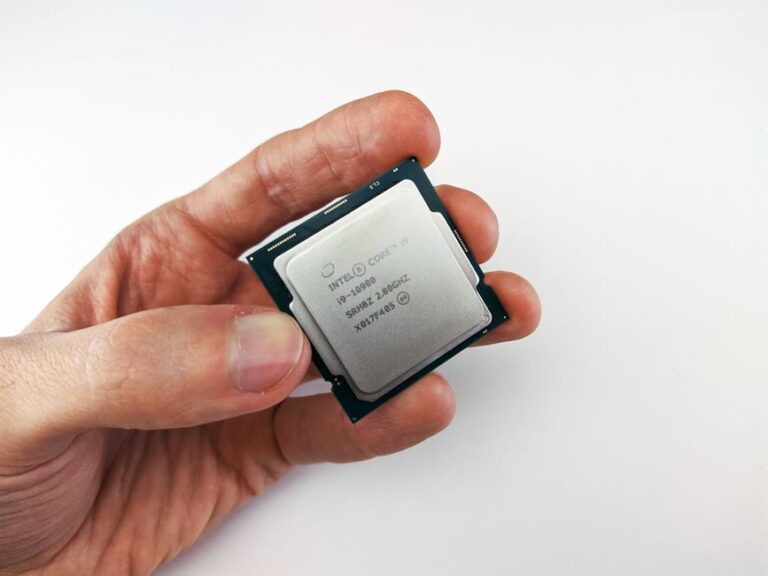
The CPU is the first number most buyers fixate on, and it is also the one they most commonly misinterpret. A laptop’s processor carries a name like “Intel Core i7” or “AMD Ryzen 7” that tells you nothing without the generation and architecture. A current-generation Core i7 (14th Gen Intel, released in 2024, or Ryzen 7 9000-series from 2024) outperforms a six-year-old i7 by a factor of two or more in most real-world tasks, despite the same brand name.
How to Read the Generation
Intel’s naming uses the number immediately after the brand (Core i7-14700K: the “14” is 14th generation). AMD uses the first digit of the four-digit number (Ryzen 7 9750X: the “9” means 9000-series, current as of 2024). Older stock marked “11th Gen Intel” or “Ryzen 5000” is last-generation clearance at best. Check the product page or tech spec PDF for the exact generation, not the retail category.
Cores, Threads, and Thermal Design Power
Two CPUs with identical names may have different core counts. A Core i5-1340P has 12 cores; a Core i5-1350P has 14. More cores help with video editing, 3D rendering, and multitasking, but a program written for single-threaded performance will not use them. For web browsing, email, and spreadsheets, six cores are enough; for video work or software development, twelve or more begins to pay dividends. Threads are what the operating system counts; most modern processors have two threads per core, so a 12-core CPU shows 24 threads. Look for “TDP” (thermal design power), measured in watts, in the processor’s fine print. A 45W chip generates less heat and runs on a thinner laptop than a 125W part, but also throttles under sustained load more readily.
Memory: How Much RAM, and Why DDR5 Is Not Yet Mandatory
RAM capacity and speed both matter, but for different reasons and at different price points. The jump from 8GB to 16GB delivers a tangible difference in responsiveness, especially if you run five browser tabs, Slack, and a media player at once. The jump from 16GB to 32GB does not register for most users outside of software development and content creation. Most modern laptops now ship with DDR5 RAM, which is slightly faster than DDR4 but costs more; DDR4 systems remain capable and hold value better as used equipment.
Check whether the RAM is soldered (not upgradeable) or in removable slots. Gaming and creative laptops often have user-replaceable RAM; ultrabooks often do not. A soldered 16GB system cannot be upgraded to 32GB later, locking you into current needs.
Storage: SSD Type Determines Real-World Speed
Every modern laptop uses an SSD, not an older spinning hard drive, so that decision is made for you. What matters is the type: NVMe drives over PCIe 4.0 or 5.0 are significantly faster than PCIe 3.0 for large file transfers and application launches. Most laptops shipping today use PCIe 4.0 or newer; check the spec sheet if the price seems unusually low. Capacity follows use case: 256GB is tight if you store video files locally; 512GB is typical; 1TB is comfortable if you do any creative work or game installation. The difference between a 512GB and 1TB model is $50 to $150, depending on brand.
Look for the actual storage type in the spec sheet. “NVMe” or “M.2 2280 NVMe PCIe 4.0” tells you the drive is modern and fast. If the spec says “SATA SSD,” that is an older generation of SSD still sold in budget machines, and you will notice the difference in boot time and large file operations.
Display: Resolution, Refresh Rate, and Panel Type Shape Your Experience
The screen is what you look at for eight hours a day, so the spec matters more than many shoppers realize. Resolution tells you pixel density: a 13-inch 1080p screen and a 15-inch 1080p screen are not the same. At 15 inches, 1080p begins to look pixelated; 1440p or higher is more comfortable. At 13 inches, 1080p is adequate; 2560 x 1600 is sharp. A 17-inch gaming laptop at 1440p looks softer than a 15-inch model with the same resolution.
Refresh rate matters if you play fast games or scroll a lot. A 60Hz display is standard and sufficient for office work. A 120Hz or 144Hz screen feels smoother but drains battery faster and costs $200 to $400 more. For creative professionals, refresh rate does not matter; color accuracy does, but that is rarely specified on consumer sheets and requires reading professional reviews.
Panel type affects viewing angles and color. IPS panels are the standard for laptops (good color, wide viewing angles) and are preferred for design work. VA panels are rarer in laptops but offer better contrast. OLED panels are appearing in premium machines and deliver excellent color and deep blacks but can suffer from burn-in if the same image stays on screen for hours. The panel type usually appears in fine print as “IPS”, “VA”, or “OLED” near the resolution specs.
Graphics: When You Need Dedicated GPU and When Integrated Is Enough
Modern CPUs include integrated graphics capable of browsing, video playback, and light gaming. If you play AAA games, edit 4K video, or use GPU-accelerated machine learning tools, you need a dedicated NVIDIA GeForce or AMD Radeon GPU. These cost $200 to $500 in added machine price and drain battery much faster (from 8 to 4 hours in real use).
If your work stays in Photoshop, Figma, and the browser, integrated graphics are fine. If you game, the dedicated GPU is non-negotiable, and its VRAM (2GB minimum, 4GB or 6GB preferred) matters more than the chip’s core count.
Battery and Thermal Specifications Tell You About Real-World Endurance
Marketing claims “15 hours of battery life” under ideal conditions (light web browsing, screen dimmed). Look for the watt-hour rating (Wh), usually found in fine print: a 52Wh battery is small (ultrabooks), a 80Wh battery is medium (typical 15-inch), and a 150Wh battery is large. More watts does not always mean more time; a high-power GPU drains a large battery in four hours. A 45W CPU and integrated graphics can stretch an 80Wh battery to 10 to 12 hours. Calculate minutes per watt-hour as a roughness check: 80Wh divided by 12 hours is roughly 6.6W average draw.
Check the thermal output: laptops with small bodies and high-power components get loud and hot under load. A gaming laptop at full load can hit 80°C (176°F) and sound like a jet engine. An ultrabook stays near 50°C with quiet fans. Reviews and user forums reveal thermal reality better than spec sheets do.
Ports and Standards: Future-Proof Your Connections
A laptop with only USB-C and no USB-A means you will buy adapters or sacrifice an external mouse. A machine with HDMI and USB-A ports accepts older peripherals without adapters. Thunderbolt 3 or 4 over USB-C is fast (40Gbps) and future-proof; USB 3.2 over Type-C is slower (10–20Gbps). If you use external storage, an SSD that connects over Thunderbolt 4 will transfer 1GB in under a second; USB 3.2 takes three seconds. For most users, one USB-A port, two USB-C, and an HDMI output is the practical minimum.
Weight and Durability: The Specs You Cannot Always Trust
Manufacturers list weight but not always consistently: “base weight” excludes the charger, while “with battery and charger” is more realistic for portability. A “portable” 15-inch laptop advertised at 3.5 pounds often weighs 4.5 pounds with the charger in your bag. Read reviews for actual weight measurements. Aluminum chassis and large hinges add weight but improve durability; plastic and thin bezels save grams but creak under pressure. These details do not appear on the spec sheet and require reading user reviews or handling the laptop in a store before purchase.
Frequently Asked Questions
Is an 8-core processor enough for a laptop in 2024 and 2025?
For browsing, email, and spreadsheets, yes. For video editing, software development, and heavy multitasking, 12 cores or more begins to deliver a noticeable improvement. Check the exact generation of the CPU—a current-generation 8-core chip outperforms a two-year-old 12-core part.
Should I buy DDR5 RAM or is DDR4 fine?
DDR5 is slightly faster, but for typical tasks like browsing and office work, the difference is imperceptible. DDR4 remains capable and is often $50 to $100 cheaper. If you buy now, DDR5 is likely to be standard by resale time, so it holds value better, but either works.
How do I know if a laptop will run the programs I need?
Check the software's system requirements page, not the laptop's brand name. A Photoshop license requires 8GB RAM minimum and a modern CPU, not necessarily an expensive machine. Free tools like the browser-based Figma run on any laptop with 4GB RAM and an internet connection. The brand and price do not predict compatibility—the specific RAM, storage, and CPU do.
